October 23 Update
This week was mostly about mesh Optimization and preserving the artist's original vision. Up to now we would lose some soft and subtle detail due to remeshing which was not a deal breaker for miniatures. However we do have folks painting larger models and display pieces where it matters a lot. You will now get much sharper and more accurate edges, subtle details persist, and thin strands of hair survive the remesh.
The UI polishing train continues. You'll see new sliders and a lot of transition animations as UI appears and disappears.
Thank you again for all the feedback and bug reports, keep them coming :)
Mesh Optimization
Crisper models at the same detail level. Until now Optimize used the same size of triangle everywhere on your model, so a smooth cheek got as many as a sharp helmet edge. Now it puts small triangles where the detail is and bigger ones on the smooth areas. Armour plates, helmet brims, blade edges and engraved panel lines come out sharper, eyes and trim lines are cleaner, and hair strands stay in one piece. Now a 2M poly model looks better than 4M previously. The process may take a few seconds longer on average but the result is absolutely worth it.
Alternate Remesh Mode gets the same upgrade. Broken models (kitbashes, low-poly or CAD-style parts, files with holes or overlapping pieces) now rebuild with the same crisp edges. Barrel rings, panel frames and plate edges on hard-surface models come out much cleaner. If Optimize gives you a bad result (holes, blobs, missing pieces), open Additional options, turn on Alternate Remesh Mode and run it again.
New "Keep Thin Strands" setting will preserve really thin and long geometry. Previously it may have been missed altogether or broken into many small pieces. Toggle this if you have such features on your model.
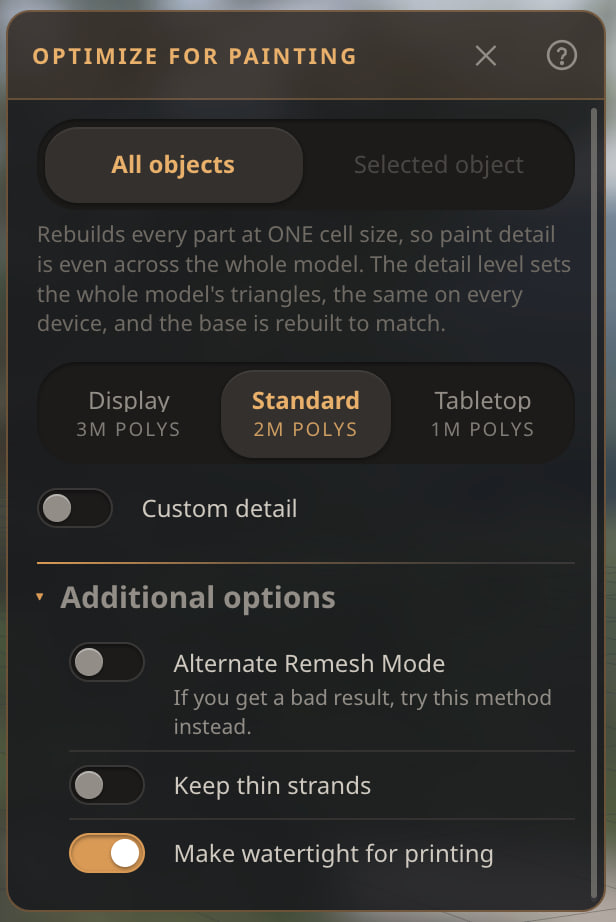
Progress bars that keep moving. Alternate Remesh Mode used to sit at 0% for a long time and then jump, which made it feel frozen. It now reports the whole way through, and every Optimize bar moves at a steady pace between updates so you can tell it's still working.
Projects you optimized before this build will offer Optimize again. You don't have to run it. If you want the sharper edges, run it, and Keep paint carries your colours over to the new mesh.
Starting a project
Pick a background scene preset when you start. The New project dialog has five mood cards: Calm, Cozy, Adventure, Cinematic and Moody. Tap one to see its scenes and pick one, so your model opens in a scene that suits how you like to paint. New projects start on the Painting Desk (Cozy) unless you choose something else, and the app remembers your pick on that device for next time. You can always change it later in Scene & Lighting, which now uses the same five groups.
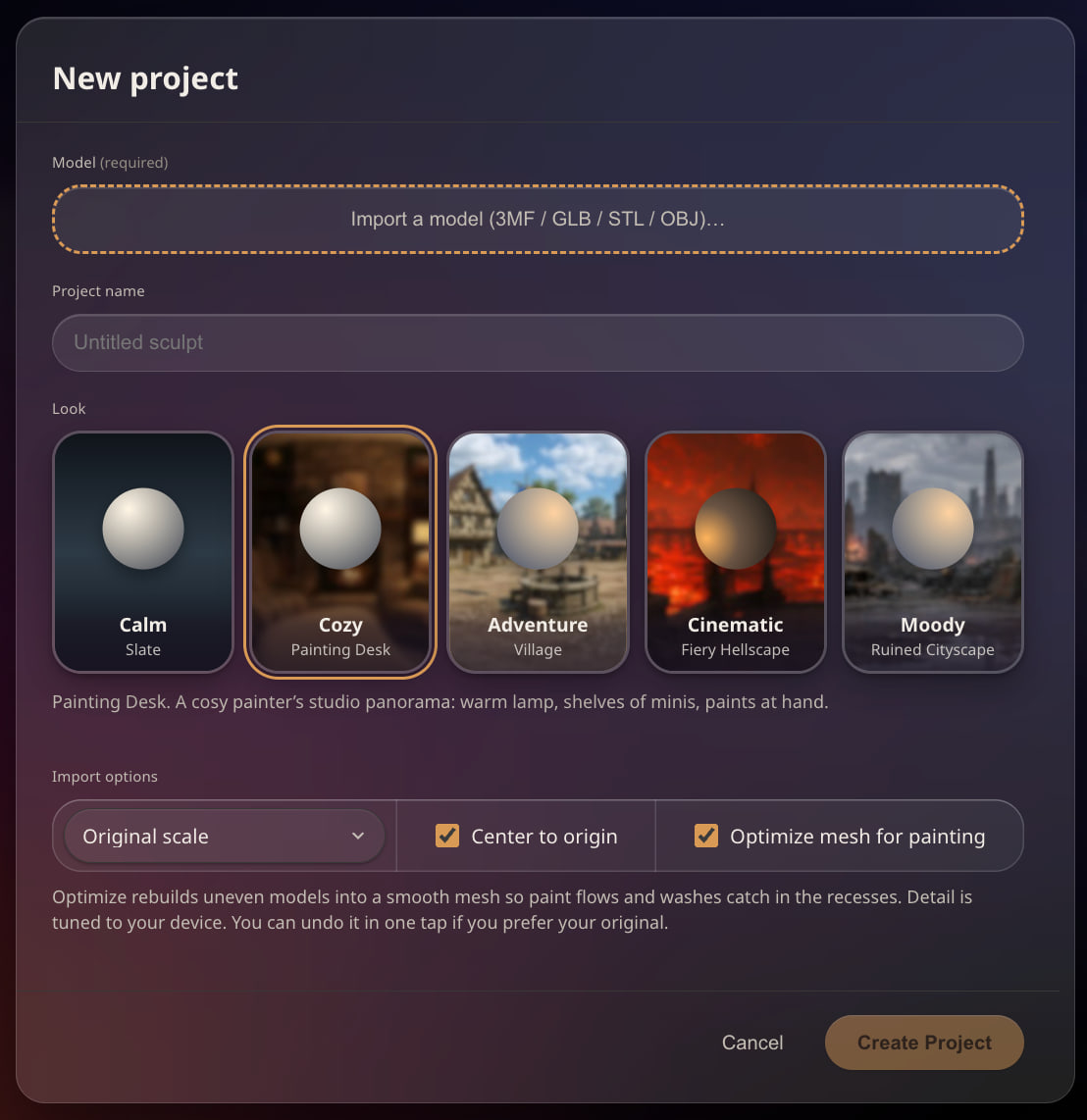
A new Light Box backdrop in Calm: bright and white, like a photo light box. Every neutral backdrop we had before was dark.
Each step opens on the tool you'll want first, the first time you visit it in a project. A new project opens Build's Assembly tools, Undercoat opens Colour, Base opens the Base popup if your model has no base yet, Print opens Bake Light, and Photo opens Video with the Turntable. It only happens once per project, so it never gets in your way after that.
The app remembers how you left each step. Jump to Base to check something, come back to Undercoat, and your Colour popup is still open where you left it. Photo remembers whether you were on Image or Video too. It's on by default in Settings > UI > Keep workspace as-is when switching between modes, if you'd rather every step open clean.
Painting
- Fix: Stipple lays a different pattern on every click. About half of all stipple strokes and fills were secretly laying the exact same speckle, which is why repeated dabs on the same spot could look stamped. Every click and every fill now lands on its own grains, so building up texture with a few passes works the way it should.
Sliders and switches
A new slider. (Thanks @Alessandro for the suggestion!) Every slider in the app is now a slim bar with its name and value written right on it, and step buttons on the right end to nudge by the smallest step. Drag to get close, then tap the buttons to land on an exact number. It takes less room and helps if you're on a small screen or have shaky hands with the mouse. This is the new default, so your sliders will look different the first time you open this build.
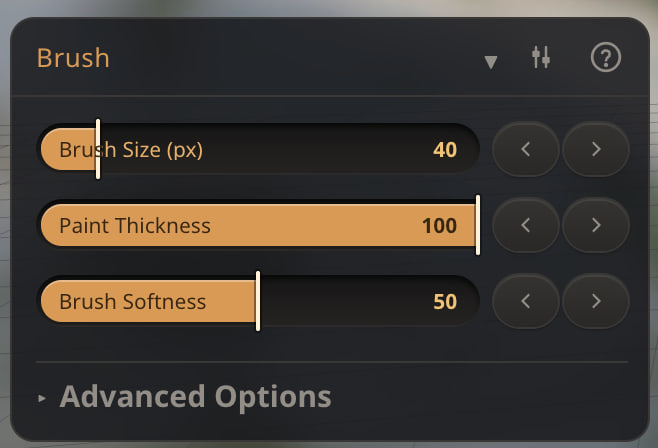
Prefer the old ones? Settings > UI > Slider Styling: Compact is the new bar, Comfortable is the slider you know. It switches every slider in the app at once. Under Compact you also choose how a press on the bar behaves, where the label sits, and where the step buttons go.
Switches sit to the left of their names by default now, so the on/off is the first thing your eye lands on. Settings > UI > Switch side puts them back on the right if you prefer. You can also change settings for how the label and the value are laid out (left, spread, center) and you can adjust how the buttons are set up as well (left cluster, right cluster, spread, off).
Look and motion
One look for every panel. Settings, View Options, Scene & Lighting and Timelapse in the top right now wear the same frame and title bar as the side panels: tap anywhere on the title bar to close. Each of them has the ? inline help too, and every View Options item finally has a tooltip for it to show.
Questions open next to the button you pressed. "Delete paint?", "Rename light?" and the like now pop up where your eye already is instead of in the middle of the screen. Whole-project questions (like unsaved changes) still open in the middle, so you can tell them apart.
Other
The triangle count in Readouts no longer doubles when the wireframe is on. A 3M model was reading 6M. The same number fed the "painting is running slowly" warning, so you may see that warning less.
The Scene panel starts narrower (340px) on a fresh setup, so it doesn't cover half an iPad screen. If you've dragged it to a width you like, that stays.
Account settings. The account menu has an Account settings window with Change password and Delete account, so a stray tap in the menu can never start deleting your account. The menu also says whether you're on the Free tier or Pro tier.
Known issues
On some hard-surface bands (a step running around a helmet, for example) a thin, jagged dark line can show along the corner after Optimize. The shape is right, the corner gets shaved a hair in places and the shading makes it show. Still on it.
Every so often a single spike shows up after Optimize at one detail level and not another. Running it again often clears it. If you see one, send me a screenshot and the model.
Optimize can land a few percent over your detail level's count (for example 2.05M on Standard).
Alternate Remesh Mode is slower and uses more memory with the new grid. On a 4GB iPad, save before you run it on a big model.
A lot of the new motion, the sliders and the Look picker were built and checked on desktop. If anything stutters, flickers or looks off on iPad, let me know.
Not painting with us yet? Start with the free starter minis, right in your browser.
Start Painting